[컴] Editor.js 의 Block tool 만들기

extension , addon / plugin 만들기 / editorjs plugin / wyswyg editor / block style editor / editorjs extention / editorjs plugin

Editor.js 의 Block tool 만들기

Block tool 은 다양한 기능을 하게 만들 수 있다. 여기서는 가장 기본적인 내용만 정리했다. 자세한 내용은 ref. 1을 확인하자.

그래서 Block tool 은 2가지 경우를 처리한다.

  1. 원하는 type 으로 값을 입력하도록 정해졌을 때,
    • 그것에 대한 입력화면(render)
      • 여기서 input 에 event handler 등을 설정해 놓을 수 있다.
      • 예를 들어 image plugin 경우에 paste event 가 발생하면, 그 url 에 대한 image tag 를 만들게 하는 등의 작업을 하도록 할 수 있다.
      • 또는, 추가로 입력받는 곳을 보여주는 등의 작업.
    • 입력된 값을 data 로 추출될때 어떤 format 으로 만들것인지 결정(save)
  2. 특정 type 으로 된 값이 들어올때 어떻게 처리할지.
  3. type 이 정해지지 않은 값이 paste 될 때, 그 값의 패턴을 보고 특정 작업을 하도록 할 수도 있다.

다시말하면, 해당 block을 특정 type 으로 처리할 수 있게 해준다고 보면 될 것 같다.

다음처럼 BlockTool 을 만들면, EditorJS 로 연결하게 된다. 이때 이 BlockTool 이 어떤 type 을 처리할 지를 정하게 된다. 아래 코드를 보면 MyBlockTool 은 type image100 으로 들어오는 값을 처리하게 되는 것이다.

const editor = new EditorJS({
  autofocus: true,
  tools: {
    // 여기의 `image` 가 type 이 된다.
    image100: MyBlockTool
  }
});

예를 들면, 다음과 같은 모습의 data 를 만들어주게 된다.

{
    "time": 1691648520461,
    "blocks": [
        {
            "id": "kuuLDGZNXn",
            "type": "image100", // <-- image100 type
            "data": {
                "url": "wtew"
            }
        }
    ],
    "version": "2.27.2"
}

입력 부분

기본적인 구조는 다음과 같다. rendersave 는 필수이다.

  • render 함수는 Toolbox 에서 선택됐을 때의 UI 를 그려준다.
  • save 함수는 block 에서 data 를 추출하는 역할을 한다.
  • Toolbox(메뉴) 에 보이게 하려면 static get toolbox 도 구현해야 한다.
    • 참고, Toolbox 는 그림에서 ‘+’ 기호를 누를 때 나오는 메뉴를 이야기한다.
class MyBlockTool {
    // 메뉴(Toolbox)에 보이는 내용
    static get toolbox() {
      return {
        title: 'Image',
        // icon: '<svg width="17" height="15" viewBox="0 0 336 276" xmlns="http://www.w3.org/2000/svg"><path d="M291 150V79c0-19-15-34-34-34H79c-19 0-34 15-34 34v42l67-44 81 72 56-29 42 30zm0 52l-43-30-56 30-81-67-66 39v23c0 19 15 34 34 34h178c17 0 31-13 34-29zM79 0h178c44 0 79 35 79 79v118c0 44-35 79-79 79H79c-44 0-79-35-79-79V79C0 35 35 0 79 0z"/></svg>'
      };
    }

    // 메뉴(Toolbox)에서 해당 tool을 선택해서 실행할 때 보이는 UI
    render(){
        return document.createElement('input');
    }
    
    save(blockContent){
      return {
        url: blockContent.value
      }
    }

    validate(savedData){
      if (!savedData.url.trim()){
        return false;
      }
      return true;
    }
}

Editor.js 와 연결

위에서 만든 BockTool 을 연결하려면 아래처럼 해주면 된다. 그러면 이제 화면의 메뉴에서 보인다.

const editor = new EditorJS({
  autofocus: true,
  tools: {
    // 여기의 `image` 가 type 이 된다.
    image: MyBlockTool
  }
});

그림처럼 toolbox 에서 정의한 내용이 menu 에 보여진다.

full code

<!DOCTYPE html>
<html>
<head>
  <meta charset="utf-8">
  <meta name="viewport" content="width=device-width, initial-scale=1">
  <title></title>


<script src="https://cdn.jsdelivr.net/npm/@editorjs/editorjs@latest"></script>

<script type="text/javascript">


class MyBlockTool {
  constructor({
    data
  }) {
    this.data = data;
  }

  static get toolbox() {
    return {
      title: 'Image',
      icon: '<svg width="17" height="15" viewBox="0 0 336 276" xmlns="http://www.w3.org/2000/svg"><path d="M291 150V79c0-19-15-34-34-34H79c-19 0-34 15-34 34v42l67-44 81 72 56-29 42 30zm0 52l-43-30-56 30-81-67-66 39v23c0 19 15 34 34 34h178c17 0 31-13 34-29zM79 0h178c44 0 79 35 79 79v118c0 44-35 79-79 79H79c-44 0-79-35-79-79V79C0 35 35 0 79 0z"/></svg>'
    };
  }

  render() {
    this.wrapper = document.createElement('div');
    const input = document.createElement('input');

    this.wrapper.classList.add('simple-image');
    this.wrapper.appendChild(input);

    input.placeholder = 'Paste an image URL...';
    input.value = this.data && this.data.url ? this.data.url : '';

    input.addEventListener('paste', (event) => {
      this._createImage(event.clipboardData.getData('text'));
    });

    return this.wrapper;
  }

  _createImage(url) {
    const image = document.createElement('img');
    const caption = document.createElement('input');

    image.src = url;
    caption.placeholder = 'Caption...';

    this.wrapper.innerHTML = '';
    this.wrapper.appendChild(image);
    this.wrapper.appendChild(caption);
  }

  save(blockContent) {
    return {
      url: blockContent.value
    }
  }

  validate(savedData) {
    // if (!savedData.url.trim()) {
    //   return false;
    // }

    return true;
  }
}
</script>
<style type="text/css">
  .simple-image {
    padding: 20px 0;
  }

  .simple-image input {
      width: 100%;
      padding: 10px;
      border: 1px solid #e4e4e4;
      border-radius: 3px;
      outline: none;
      font-size: 14px;
  }
</style>

</head>
<body>
<div id="editorjs"></div>
<button id="save-button">Save</button>
<pre id="output"></pre>

<script>
    const editor = new EditorJS({
      // logLevel: 'VERBOSE',
      autofocus: true,
      tools: {
        image2: MyBlockTool,
      },
      
      data: {
        time: 1552744582955,
        blocks: [
          {
            type: "image2",
            data: {
              url: "https://cdn.pixabay.com/photo/2017/09/01/21/53/blue-2705642_1280.jpg"
            }
          }
        ],
        version: "2.11.10"
      }
    });

    const saveButton = document.getElementById('save-button');
    const output = document.getElementById('output');

    saveButton.addEventListener('click', () => {
      editor.save().then( savedData => {
        console.log(savedData)
        output.innerHTML = JSON.stringify(savedData, null, 4);
      })
    })
</script>
</body>
</html>

See Also

  1. 쿠…sal: [컴] Editor.js 에서 Inline Tool 예시

Reference

  1. Creating a Block Tool

[컴] Editor.js 에서 Inline Tool 예시

wyswyg editor / block style editor / editorjs extention / editorjs plugin

Editor.js 에서 Inline Tool 예시

ref. 1 에서 설명하는 내용의 full code 이다. 아래 code를 .html로 저장해서 확인해 보면 된다.

.html file 을 실행하면, 아래와 같은 화면을 볼 수 있다. 그림에서 ’Mark’메뉴가 새롭게 추가된 Inline Tool 이다.

<!DOCTYPE html>
<html>
<head>
  <meta charset="utf-8">
  <meta name="viewport" content="width=device-width, initial-scale=1">
  <title></title>


<script src="https://cdn.jsdelivr.net/npm/@editorjs/editorjs@latest"></script>

<script type="text/javascript">
class MarkerTool {
  static get isInline() {
    return true;
  }

  static get sanitize() {
    return {
      mark: {
        class: 'cdx-marker'
      }
    };
  }

  constructor({
    api
  }) {
    this.api = api
    this.button = null;
    this.state = false;
    this.tag = 'mark';
    this.class = 'cdx-marker';
  }

  render() {
    // <button type="button" class="ce-inline-tool" data-tool="marker">Mark</button>
    this.button = document.createElement('button');
    this.button.type = 'button';
    this.button.textContent = 'Mark';
    this.button.classList.add(this.api.styles.inlineToolButton);

    return this.button;
  }

  // When the text is block selected, this method is invoked
  surround(range) {
    if (this.state) {
      // If highlights is already applied
      this.unwrap(range);
      return;
    }

    this.wrap(range);

  }
  wrap(range) {
    const selectedText = range.extractContents();
    const mark = document.createElement(this.tag);

    mark.classList.add(this.class);
    mark.appendChild(selectedText);
    // Insert new element
    range.insertNode(mark);

    this.api.selection.expandToTag(mark);
  }
  unwrap(range) {
    const mark = this.api.selection.findParentTag(this.tag, this.class);
    const text = range.extractContents();

    mark.remove();

    range.insertNode(text);
  }

  checkState(selection) {
    const text = selection.anchorNode;

    if (!text) {
      return;
    }

    const anchorElement = text instanceof Element ? text : text.parentElement;

    this.state = !!anchorElement.closest('MARK');
  }

};
</script>
<style type="text/css">
  .simple-image {
    padding: 20px 0;
  }

  .simple-image input {
      width: 100%;
      padding: 10px;
      border: 1px solid #e4e4e4;
      border-radius: 3px;
      outline: none;
      font-size: 14px;
  }
</style>

</head>
<body>
<div id="editorjs"></div>
<button id="save-button">Save</button>
<pre id="output"></pre>

<script>
    const editor = new EditorJS({
      // logLevel: 'VERBOSE',
      autofocus: true,
      tools: {
        marker: MarkerTool,
      },
      
      data: {
        time: 1552744582955,
        blocks: [
          {
            type: "paragraph",
            data: {
              "text": "dfsfd<mark class='cdx-marker'>sdf</mark>"
            }
          }
        ],
        version: "2.11.10"
      }
    });

    const saveButton = document.getElementById('save-button');
    const output = document.getElementById('output');

    saveButton.addEventListener('click', () => {
      editor.save().then( savedData => {
        console.log(savedData)
        output.innerHTML = JSON.stringify(savedData, null, 4);
      })
    })
</script>
</body>
</html>

See Also

  1. 쿠…sal: [컴] Editor.js 의 Block tool 만들기

Reference

  1. Creating an Inline Tool

[컴] umd module js 를 vue에서 import 하기 위한 방법

vue 에서 library / npm library 직접 js library import / how to / import .js lib

umd module js 를 vue에서 import 하기 위한 방법

vue component 에서 import 해서 사용 하는 법 몇가지를 적어보려 한다.

만약 MyModule 이라는 umd module 를 import 한다고 가정하자. 그럼 다음 2가지 방법을 사용해 볼 수 있다.

  1. vue component 에서 import 를 하고 window.MyModule 을 이용한다.
  2. vue plugin 으로 app.use(MyModulePlugin) 을 이용해서 vue component 에서 사용할 수 있게 해준다.

vue component 의 import

vue component 에서 사용하는 import 는 ES6 의 import 라고 볼 수는 없다. 그것은 vite(또는 webpack)을 거치기 때문에, 그 bundler 가 한번 처리한 후의 상황에 달려있다. 그래서 다음 2가지 경우가 있을 듯 하다.

  1. import 가 vite 가 처리된 이후에도 남아있다면, 그 import 가 web browser 에서 ES6 의 import 로 사용될 수는 있다.
  2. vite 가 bundling 을 할 때 그 import 를 이용해서 하나의 chunk 로 묶는 데 사용되고 사라진다.

window.MyModule 사용

umd module 을 vue 의 component 에서 직접적으로 아래처럼 import 를 했다.

여기서는 @editorjs/image 라는 editor.js 의 plugin module 이 있는데, 이 module 의 ‘dist’ 에 있는 .js 를 직접 사용해보는 code이다.

이 경우에 browser에서 확인해보면 window.ImageTool 에 load 를 하게 된다. 이 경우 window.ImageTool 로 접근해서 사용하면 된다.

// MyComponent.vue
<script>
import EditorJS from '@editorjs/editorjs'
// import ImageTool from '@editorjs/image'

import * as ImageTool from '@/utils/editor/bundle.dev.js'
// 아래 방법은 다 실패했다.
// import {ImageTool} from '@/utils/editor/bundle.dev.js'
// import ImageTool from '@/utils/editor/bundle.dev.js'
// const { ImageModule } = require('@/utils/editor/bundle-dev.js')
</script>

plugin 으로 import 한다.

또는 아래처럼 plugin 을 사용할 수 있다. 이 방법이 좀 더 깔끔해 보이긴 하다.

import { createApp } from 'vue'
import { createPinia } from 'pinia'

import App from './App.vue'
import router from '@/router'

import * as ImageTool from '@/utils/editor/bundle-dev.js'

const ImageToolPlugin = function (Vue, options) {
  Vue.mixin({
    created: function () {
      console.log(this)
      this.ImageTool = ImageTool
    }
  })
}

const app = createApp(App)

app.use(createPinia())
app.use(ImageToolPlugin)
app.use(router)

app.mount('#app')

source 를 그대로 가져오기

만약 build 되기전 원본 소스가 있다면, 그냥 그것을 복사해서 import 하는 방법도 가능하다.

Reference

  1. javascript - How to import Library into Vue3 project - Stack Overflow
  2. Plugins | Vue.js

[컴] vendure server 실행하기


shopping mall / headless server / v2.0  / vendure 2.0 /vendure 2

vendure server 실행하기

준비

  1. postgres 에 database 를 만든다. 여기서는 database 이름을 twin-dog 라고 할 것이다.
  2. postgres 에 접근하는 id/pw 를 알아둔다.

실행

  1. npx @vendure/create twin-dog
    • 설치하고,
    • 서버에 필요한 table 들을 생성하고,
    • 원하면, 테스트값들을 넣어준다.
  2. cd twin-dog && yarn dev
    • yarn dev를 하면 server와 worker를 둘다 실행시켜 준다.
    • yarn start : package.json을 보면, 추후에 실제 서비스를 할 때는 yarn start를 하면 된다.
  3. web browser 에서 http://localhost:3000/admin/login 를 입력해서 이동하자.
    • vendure 는 기본적으로 headless server라서 client 부분이 없다. 즉, 쇼핑몰 페이지는 없다. 다만 admin page 는 존재한다. 그래서 admin page 로 접속한다.
    • admin page의 id/pw 는 아까 @vendure/create 로 생성할 때 입력한 값이다. 여기서는 기본값인 ’superadmin’을 사용했다.
D:\a\prog\sashow\real-world-vendure\test02>npx @vendure/create twin-dog

Port 3000 is in use. Please make it available and then re-try.

D:\a\prog\sashow\real-world-vendure\test02>npx @vendure/create twin-dog

Welcome to @vendure/create v1.9.2!

Let's configure a new Vendure project. First a few questions:

√ Which database are you using? » Postgres
√ What's the database host address? ... localhost
√ What port is the database listening on? ... 5432
√ What's the name of the database? ... twin-dog
√ What's the schema name we should use? ... public
√ What's the database user name? ... myaccount
√ What's the database password? ... ******
√ What identifier do you want to use for the superadmin user? ... superadmin
√ What password do you want to use for the superadmin user? ... superadmin
√ Populate with some sample product data? ... no / yes

Setting up your new Vendure project in D:\a\prog\sashow\real-world-vendure\test02\twin-dog
This may take a few minutes...

  √ Installing dependencies
  √ Installing dependencies
  √ Generating app scaffold
  √ Initializing server

Success! Created a new Vendure server at D:\a\prog\sashow\real-world-vendure\test02\twin-dog

We suggest that you start by typing:

    cd twin-dog
    yarn dev

Happy hacking!

D:\a\prog\sashow\real-world-vendure\test02>cd twin-dog

D:\a\prog\sashow\real-world-vendure\test02\twin-dog>yarn dev
yarn run v1.22.19
$ concurrently yarn:dev:*
$ ts-node ./src/index.ts
$ ts-node ./src/index-worker.ts
[worker] info 23. 8. 9. 오후 7:37 - [Vendure Worker] Bootstrapping Vendure Worker (pid: 15260)...
[worker] info 23. 8. 9. 오후 7:37 - [Vendure Worker] Vendure Worker is ready
[worker] info 23. 8. 9. 오후 7:37 - [JobQueue] Starting queue: apply-collection-filters
[worker] info 23. 8. 9. 오후 7:37 - [JobQueue] Starting queue: update-search-index
[worker] info 23. 8. 9. 오후 7:37 - [JobQueue] Starting queue: send-email
[server] info 23. 8. 9. 오후 7:37 - [Vendure Server] Bootstrapping Vendure Server (pid: 3428)...
[server] info 23. 8. 9. 오후 7:37 - [AdminUiPlugin] Creating admin ui middleware (prod mode)
[server] info 23. 8. 9. 오후 7:37 - [AssetServerPlugin] Creating asset server middleware
[server] info 23. 8. 9. 오후 7:37 - [EmailPlugin] Creating dev mailbox middleware
[server] info 23. 8. 9. 오후 7:37 - [RoutesResolver] HealthController {/health}:
[server] info 23. 8. 9. 오후 7:37 - [RouterExplorer] Mapped {/health, GET} route
[server] info 23. 8. 9. 오후 7:37 - [GraphQLModule] Mapped {/shop-api, POST} route
[server] info 23. 8. 9. 오후 7:37 - [GraphQLModule] Mapped {/admin-api, POST} route
[server] info 23. 8. 9. 오후 7:37 - [NestApplication] Nest application successfully started
[server] info 23. 8. 9. 오후 7:37 - [Vendure Server] ================================================
[server] info 23. 8. 9. 오후 7:37 - [Vendure Server] Vendure server (v2.0.5) now running on port 3000
[server] info 23. 8. 9. 오후 7:37 - [Vendure Server] ------------------------------------------------
[server] info 23. 8. 9. 오후 7:37 - [Vendure Server] Shop API:     http://localhost:3000/shop-api
[server] info 23. 8. 9. 오후 7:37 - [Vendure Server] Admin API:    http://localhost:3000/admin-api
[server] info 23. 8. 9. 오후 7:37 - [Vendure Server] Asset server: http://localhost:3000/assets
[server] info 23. 8. 9. 오후 7:37 - [Vendure Server] Dev mailbox:  http://localhost:3000/mailbox
[server] info 23. 8. 9. 오후 7:37 - [Vendure Server] Admin UI:     http://localhost:3000/admin
[server] info 23. 8. 9. 오후 7:37 - [Vendure Server] ================================================

See Also

  1. Extending Vendure’s functionality with custom plugins - DEV Community
  2. 쿠...sal: [컴][웹] vendure 설치 및 개발용 서버 실행
  3. vendure initial commit  
  4. 쿠...sal: [컴] vendure 2.0 설치 및 실행

Reference

  1. Writing a Vendure Plugin | Vendure docs

[컴][자바] G1 Garbage Collector 2/2

  1. 쿠…sal: [컴][자바] java 의 G1 collector
  2. 쿠…sal: [컴][java] G1 Garbage Collector 2/2

G1 Garbage Collector 2/2

G1 heap 구조

하나의 memory area 를 여러 size의 region 들로 나눠서 사용하게 된다. heap 이 대략적으로 2000개정도의 region 으로 나눠진다. 가장 작은 사이즈는 1Mb 에서 가장큰 것은 32Mb 정도 된다.

그림처럼, 각 region 들은 Eden, Survivor, Old Generation space 중 하나로 사용된다. 여기서 Enden과 Survivor 는 young generation 이다. 추가로 Humongous region 이라는 4번째 region type 이 있다. (한국말로 하면 ’거대영역’정도일려나.)

옛날 garbage collector 들처럼 region 들이 연속적일 필요는 없다. (예를 들어, CMS 의 경우를 보면, eden, survivor 등 각 영역은 1개의 연속된 공간으로 이뤄졌다. 참고)

frome ref. 1
  • live objct들(사용중인 object들)은 한 region 에서 다른 region 으로 evcuated 된다.(즉, copy 또는 move 된다.)
  • region 들은 다른 application thread 들을 멈추는 것 없이 병렬로 collected 되도록 디자인 됐다.

G1 에서 Young GC

young generation garbabe collection 들, 즉 young GCs

  • 이때 STW(Stop The World) 멈춤이 있다. 즉, 모든 application thread 들은 이 operation 을 위해서 멈추게 된다.
  • young GC 는 여러 thread들을 사용해서 병렬로 수행된다.
  • live object들은 새로운 survivor region 들로 copy 되거나 old generation region 들로 copy 된다.
    • live object들은 1개 이상의 survivor region 들로 evacuated 된다. 몇몇 aging threshold 에 도달한 object들은 old generation region 들로 가게 된다.
  • Eden size 와 survivor size 는 다음 young GC를 위해 계산된다.
  • Accounting information은 size를 계산하는데 도움을 주기 위해 저장된다.
    • ’pause time 목표’같은 값들이 고려되어진다.
  • young generation memory 는 여러 region 들로 구성된다. 이 region 들은 연속된 공간에 있지 않다. 이것은 필요할 때 size를 조정하는 것을 쉽게 해준다.
  • 이 방법은 region 들을 필요할 때 region 의 size를 조정하기 매우 쉽게 해준다. 필요할 때 더 크게, 또는 더 작게 만들게 해준다.

G1 으로 Young GC 가 끝나면:

  • live object들은 survivor region 들이나 old generation region 들로 evacuated 된 상태다.
  • 아래 그림에서 최근에 old generation region 으로 움직인 것은 어두운파란색이고, 최근에 survivor region 으로 간 object들은 녹색이다.

G1 으로 Old Generation Collection

CMS collector 처럼, G1 collector 는 ’낮은 pause 시간을 갖는 old generation object를 위한 collector’로 디자인 됐다.

old generation 에 대한 G1 collection phase들은 다음과 같다.

  1. initial Mark(Stop the World Event)
  2. Root Region Scanning
  3. Concurrent Marking
  4. Remark(Stop the World Event)
  5. Cleanup(Stop the World Event and Concurrent)

상세 내용:

  1. Inintial Marking

    • Stop the World Event : 이것도 ’Stop the World Event’이다.
    • live object에 대한 initial marking 은 young generation garbage collection 때 같이 수행된다. log에 이것들은 GC pause (young)(inital-mark)로 기록된다.
  2. concurrent marking phase

    • 전체 heap 에서 live object들을 찾는다.
    • 이것은 application 이 실해되는 중에 일어난다.
    • 이 phase는 young generation garbage collection 들에 의해 interrupted 될 수 있다.
    • liveness 를 결정하는 accounting information 이 계산된다.
    • liveness informatin 은 application 이 실행되는 중에 계산된다.
    • liveness information 은, evaucation pause 동안에, 어떤 region 들이 환원(reclaim) 되는 것이 제일 좋은지 구별한다.
    • CMS 같은 sweeping phase 가 없다.
  3. Remark Phase

    • heap 에 있는 live object 의 marking 을 완료한다.
    • 완전하게 비어있는 region 들은 환원된다.(reclaimed)
    • Snapshot-at-the-Begging(SATB) 알고리즘을 사용한다. 이것은 CMS 에서 사용되던 것보다 더 빠르다.
    • 모든 region 에 대한 liveness 를 계산한다.
  4. Copying/Cleanup Phase

    • live object들과 완전히 빈 region에 대한 accounting을 수행한다.(Stop the world)
    • Remembered Sets 를 정리한다.(Stop the world)
    • 빈 region들을 초기화하고 그것들을 free list에 반환한다.
    • young generation 과 old generation 은 동시에 환원된다.
    • old generation region 들은 그들의 liveness 에 기반해서 선택된다.
      • G1 은 가장 낮은 liveness 를 가진 region들을 선택한다.
      • 이 region 들은 가장 빠르게 collect 된다.
    • 그리고 나서 이 region들은 young GC 가 수행되는 시간에 같이 실행돼서 collected 된다.
    • 이것은 log에 [GC pause (mixed)] 라고 표시된다.

선택된 region 들은 collected되고, 어두운파랑색 region 과 어두녹색 region 으로 compacted된 상태다.

[컴] Concurrent Mark Sweep (CMS) collector

Concurrent Mark Sweep (CMS) collector

※ 다음 내용은 ref. 1을 번역하고, 몇몇 부분은 설명을 추가해서 재구성했다.

CMS collector 를 한국말로 번역한다면, ‘동시에 마킹해서 쓸어버리는 collector’ 정도가 될 것 같다.

이 CMS 는 대부분의 garbage collecion 일을 application thread들과 동시에(concurrently) 처리하게 해서 ‘잠시멈춤’(pause) 들을 최소화 하려 시도한다.(–> application thread 들이 동작할 때 같이 garbage collection 을 한다)

일반적으로 동시에 실행돼서 pause가 적은 garbabe collector 는 object들을 복사하거나, 압축 하지 않는다.

garbage collection 은 live object들을 이동시키지 않고 처리된다. 만약 fragmentation 이 문제가 되면 좀 더 큰 heap 을 할당해야 한다.

1. CMS collector 를 위한 heap 구조

heap 은 다음 3개의 공간(space)으로 나눠진다.

  • Young generation
    • Eden space
    • 2 Survivors spaces
  • Old generation

full GC 를 하는 것이 아니라면, 압축(compaction)은 하지 않는다.

from ref. 1

2. Young GC 가 CMS에서 어떻게 동작하는가

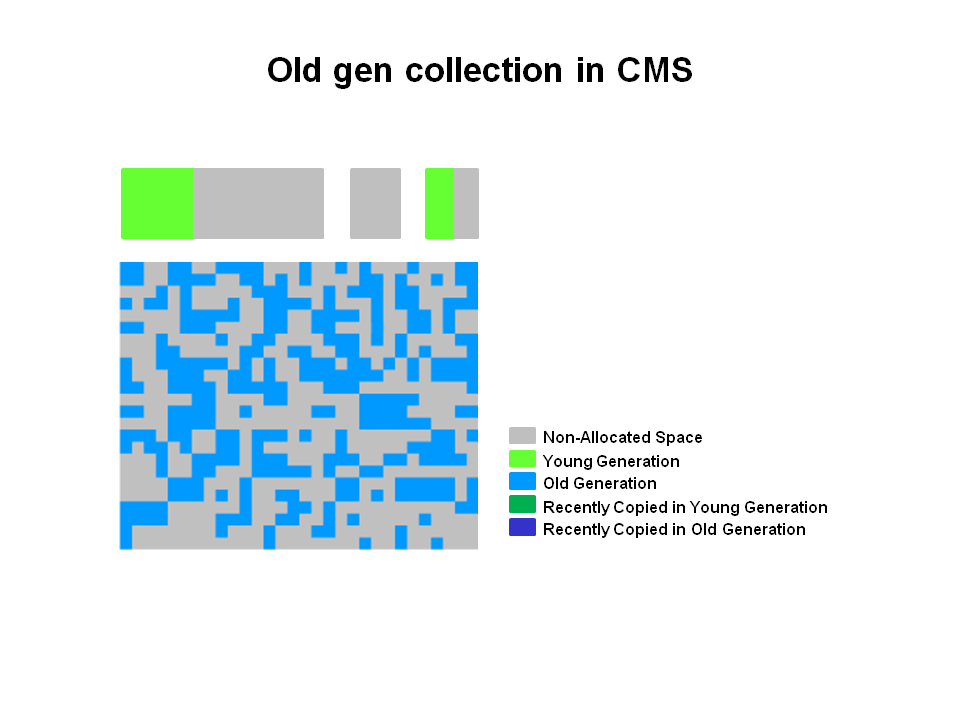
application 이 일정시간 동작한 후의 heap 모습을 보면 대략 다음과 같다.

  • young generation 공간은 allocated 되었다.
  • old generation 공간은 일부 allocated 되어 있다.
    • Object들은 old generation area 에 흩어져 있게 된다.
    • 이 allocated object 를 다른 곳으로 움직이지 않고, 그 자리에서 deallocate 하게 된다.
    • full GC 가 있지 않는한, space는 compacted 되지 않는다.
from ref. 1

GC

young generation 에 있는 CMS collector는 parrallel collector와 동일한 알고리즘을 사용한다.

heap 의 old generation에 대한 CMS collector 의 수행은 다음과 같은 큰단계(phase)들로 나눌 수 있다.

  1. initial mark(Stop the World Event)
  2. concurrent mark
  3. remark(Stop the World Event)
  4. concurrent sweep
  5. resetting

단계별 설명:

  1. Young generation collection

    여기선 시간이 지나서 오래된 object들을 다른 space로 옮기는 copy 가 이뤄진다.

    • Eden space와 survivor space 에 있는 live object들(사용중인 object들)은 다른 survivor space로 copy 된다.
      –> 그리고 기존의 것은 지워진다. 그래서 Young GC 이후에 Eden space와 ’survivor 중 한개’는 비워진다.
    • aging threshold 에 다다른 오래된 object들은 old generation 으로 가게 된다.
    from ref. 1

    아래 그림에서 새롭게 old generation 으로 가게된 obejct들은 어두운파란색으로 표시됐다.

    from ref. 1
  2. CMS 로 Old Generation Collection

    한참 application 이 돌다가 이제 old generation 이 어느정도 찼다 싶으면, CMS가 시작된다. 여기서부터 CMS 동작의 시작이다. 여기서는 live object를 찾아서 mark 를 한다.

    대략적으로 이야기 하면, 처음에는 잠깐 멈춰서 live object를 찾는다.(initial mark) 그리고 다시 application 이 돌고, 그러면서 이제 live object들을 계속 mark 한다.(concurrent mark) 그리고 다시 잠깐 멈춰서 live object를 찾는다.(remark)

    ‘stop the world’ event 가 총 2번 발생하는데, inital mark 와 remark 시점에 발생한다. old generation 이 특정 점유율(occupancy rate)에 도달할때, CMS 가 시작된다.

    1. initial mark : initial mark 는 짧은 pause phase 이다. live object들이 mark 되는 시점이다.
    2. Concurrent marking : application 은 계속 실행되고 있는 동안에 Concurrent marking 은 live object들을 찾는다.
    3. remark : remark phase 에서는, 방금수행한 concurrent marking 동안에 놓쳤던 object들을 찾게 된다.
    from ref. 1
  3. Old Generation Collection - Concurrent Sweep

    이전 phase에서 mark 되지 않은 Object들, 즉 live object들이 아닌 dead object들은 그자리에서 deallocated 된다. compaction 은 없다.

  4. Old Generation Collection - After Sweeping

    위 sweeping phase 이후, 많은 메모리들이 freed 된 상태가 된다.

    최종적으로 CMS collector 는 resetting phase로 갈 것이다. 이제 다시 GC threshold 에 도달할 때까지 그냥 기다린다.

See Also

  1. 쿠…sal: [컴][자바] java 의 G1 collector

Reference

  1. Getting Started with the G1 Garbage Collector

[컴][웹] fingerprint 확인해주는 사이트


지문 / 컴퓨터 id 확인 하는 방법 / uid / unique id

fingerprint 확인해주는 사이트

  • https://iphey.com/ : 자신의 브라우저로 사이트에 접속하게 되면, 어떤 값들이 확인되는지를 알 수 있다.
  • https://amiunique.org/ : 자신의 브라우저의 fingerprint 가 얼마나 일반적인지를 알려준다.
  • https://browserleaks.com/ : 몇몇 fingerprint 값에 대해서 좀 더 자세하게 보여준다. 그리고 각 fingerprint 값에 대한 설명도 있다.

fingerprint.js

fingerprint 를 만드는 js library 이다. source가 open 되어 있다. 확인해보면 browser에서 fingerprint 를 추출하는 다양한 방법들을 확인할 수 있다.

See Also

  1. How the Web Audio API is used for audio fingerprinting : Fingerprint.js 를 만든 회사에서 audio fingerprinting 에 관해 설명하는 글